Showing posts with label vmware. Show all posts

Wednesday, February 2, 2022

VMware ESXi Commandline Get CPU and Memory Information

This is a post by brandon.lee published at https://www.virtualizationhowto.com/2019/09/vmware-esxi-commandline-get-cpu-and-memory-information/ that explains several ways to get hardware info relative to your vmware esxi host

There are times with your virtual infrastructure running on top of VMware vSphere that you need to gather information about the physical servers you are running on. Have you ever wanted to know the details about CPU, memory, or other physical hardware? From time to time it is very handy to be able to gather some of these details from the VMware ESXi command line. Let’s take a look at VMware ESXi commandline get CPU and Memory Information.

Tuesday, October 22, 2019

Remove vmkdump foder in VMware esxi 6.x

Run the command esxcli system coredump file list until get a true value for both parameters Active and Configured.

[root@esx:~] esxcli system coredump file list
Path                                                                                                     Active  Configured        Size
-------------------------------------------------------------------------------------------------------  ------  ----------  ----------
/vmfs/volumes/xxxxxxxx-xxxxxxxx-xxxx-xxxxxxxxxxxx/vmkdump/xxxxxxxx-xxxx-xxxx-xxxx-xxxxxxxxxxxx.dumpfile    true        true  3740270592

Then run the following two commands to remove de the dump file:

[root@esx:~] esxcli system coredump file set -u
[root@esx:~] esxcli system coredump file remove -f /vmfs/volumes/xxxxxxxx-xxxxxxxx-xxxx-xxxxxxxxxxxx/vmkdump/xxxxxxxx-xxxx-xxxx-xxxx-xxxxxxxxxxxx.dumpfile

Now you can remove the vmkdump folder.

Thursday, October 17, 2019

Set hardware time on VMware esxi 6.x from console

If you need to change the system time for a VMware esxi 6.x server fron CLI you must use the following command:

esxcli system time set


Friday, September 27, 2019

Update VMware ESXi v5.5

Since the updates for ESXi v5.5 are no more accesible at VMware Updates page, here you’ll find a procedure for install then from esxi console.

Thursday, August 8, 2019

Change vmnic order on vSphere 6.x

This is an article by Marco van Baggun at www.vmbaggum.nl that explains how to change vmnic order on vSphere 6.x

Here you can check how to do it for previous versions.

Thursday, October 19, 2017

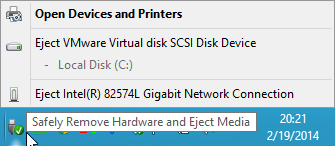
Various ways to address the "Safely Remove Hardware" Tray Icon issue

Here you can find a post by Andreas Peetz that explains how to avoid users to ‘safely remove devices’ in virtual machines.

Various ways to address the "Safely Remove Hardware" Tray Icon issue

by Andreas Peetz     at Sunday, February 23, 2014

Friday, September 18, 2015

Using Windows 8 and Windows Server 2012 with VMware vSphere

This is a post from Andrea Mauro, very usefull for installing the newest Microsoft’s OSes in old vSphere v4.x infrastructure.

Friday, December 5, 2014

Link for Annual VMware Partner Network Program fee payment

After hours searching in VMware’s Partner Portal I finally throw in the towel and ask for support. This is the direct link sent by Chaithra at VMware Partner Network Team. Thanks.

http://store.vmware.com/store/vmware/en_US/DisplayProductDetailsPage/productID.170160800&ipr=yr

Friday, August 8, 2014

Revert a virtual machine to last snapshot when power off

If you need to revert a virtual machine to the last snapshot every time is powered off you must change the snapshot.action parameter in .vmx configuration file.

Friday, March 28, 2014

Format a ESX & ESXi VMFS file system manually

Here you can find a excellent post from GK_RAJ that explains how to reformat a VMFS filesystem from console.

And this is his post:

Wednesday, March 27, 2013

How to create one user with ‘operator’ skills in vSphere 4.x

These are the steps to create one user with operator skills in vSphere 4.x. This operator user will be able to power on, suspend or power off virtual machines, mount CDs, make snapshots, but it shall not change virtual machine’s settings, and only in virtual machines it will be authorized.

Monday, December 3, 2012

Mount a Samba file share from esx 3.5


This is an extract from a William Lam’s post in vmware communities:
If you want to mount NTFS volume through the ESX Service console (verified on 3.0.2 & 3.5) you'll need to run the following command:
mount -t smbfs -o username='DOMAIN\primp' //IP_ADDRESS/SHARE_PATH /some/mount/path
username MUST has the single tick marks around the DOMAIN\username
Example: DOMAIN=vmware.com, USERNAME=user, IP=172.30.0.100, CIFS_PATH=/admin_files, LOCAL_MOUNT_PATH=/tmp/mount
You would do the following:
mount -t smbfs -o username='vmware.com/user' //172.30.0.100/admin_files /tmp/mount
This will then prompt for your password, and you should be able to mount. If you want to always mount this on boot, you'll need to add an /etc/fstab entry, this will require your password, but you can mask that off by specifying a file that is only readable to root or some user where your password can be saved without being in plain sight. You'll also want to make sure you open the port for samba through the firewall (esxcfg-firewall -e smbClient)


Thursday, October 11, 2012

Consolidate a disk with deltas when the virtual machine claims that there are no snapshots in VMware esx 4.x

I’ve recently have and issue with a virtual machine that had not been able to consolidate the deltas in all the disks after a snapshot remove. So I had a virtual machine without snapshots but some disks with deltas.

image

In esx 4.x you can clone an individual virtual machine disk with or without deltas (Here you can view the KB document that explains how), but if your base disk is large this can take a very long time, and you will need enough free space to clone the disk.

So I’m trying to consolidate the disk in the same way this task is done when you remove a snapshot, these are the steps:

Thursday, October 4, 2012

HOW TO: Remove Hidden Devices after HIR

Storagecraft has a document that explains how to remove hidden devices after a HIR (Hardware Independent Restore):

Situation:

This solution details how to show non-present/hidden devices that are often left behind when performing a Hardware Independent Restorei (HIRi). This can be particularly useful when assigning an IP address for a Domain Controlleri (DC) to correctly connect to Active Directory (AD), as sometimes a non-present network adapter has already been assigned the IP address you need and thus it must be uninstalled.

You may be receiving an IP address conflict error from Microsoft when attempting to assign the correct IP for your DC to access AD (which is a very important step that must be done in active directory recovery mode before fully booting up the machine). This could be caused by a hidden device left behind from the source computer after a HIR.

Solution:

To rectify this issue you will need to do the following two items, preferably in Safe Mode for normal servers and Active Directory restore mode for Domain Controllers (see Step 3 below):

Step 1. Click Start, point to Programs, point to Accessories, and then click Command Prompt.
Step 2. At the command prompt, type the following lines, pressing ENTER after each line
set devmgr_show_nonpresent_devices=1
cd %SystemRoot%/System32
devmgmt.msc

Step 3. In Device Manager go to View | Show hidden devices.
Step 4 Navigate to the network adaptors section. Locate any greyed out or faintly outlined devices - these devices are not present and can safely be removed by right clicking and selecting Uninstall.
Step 5. Active Directory Domain Controllers (DC) require special attention – when the first boot of a restored DC happens hit F8 and select AD restore mode, this ensures that AD will not run. Perform all the steps above and ensure that the correct IP address is configured to the LAN interface; this may take up to two reboots. If this is not done and the server is allowed to boot normally it will sit at the “Preparing Network Connections” stage for a considerable amount of time and possibly still fail.

Additional Information:

This solution can also be used to remove all other devices not present on the new server.

Wednesday, July 25, 2012

Moving a virtual machine without vmotion in esx 3.5 and 4.x


When you move a virtual machine to a new datastore then the esx server shows it as inaccessible:

image

You can unregister and register the virtual machine again from the new location, but then you will need to do some other changes as fix ‘Virtual Machine Startup’ order, also Veeam backup treats this vms as new ones and backup and replica jobs will fail.

To avoid this problems you can do as follows:

Friday, January 13, 2012

VMFS 3 maximum file size

This is the maximum file size in VMFS 3 depending on block size selected during filesystem creation.
image

Wednesday, January 4, 2012

iSCSI disks rescan on vSphere 4.x


When you've lost your iSCSI disks on vSphere esx4, you can force a rescan of the vmhbaXX adapter from console, keep reading....

Tuesday, November 29, 2011

VMware ESX 3.5 Update Manager Failure

This is a post from Roger Birong, esxupdate also fails from console not only from ssh:
If you are suddenly (June 2011) unable to Scan for Updates or Remediate VMware ESX 3.5 Hosts, you may be without

Friday, November 11, 2011

Block size limitations of a VMFS datastore

Here you can find a VMware's Knowledge Base article related to VMFS datastores:
VMFS Block Sizes
The block size on a VMFS datastore defines two things:

Tuesday, October 18, 2011

Performing a rescan of the storage on vSphere


Here you can find a VMware's Knowledge Base article that explains how to perform a rescan of the storage on vSphere.