Here you can find the solution to this error in MDaemon mail server. It's a post from Jay Tolbert at lists.altn.com:
Go to Setup -> Default Domain & Servers, Servers, uncheck ...refuses
messages which are not RFC compliant. That will allow MDaemon to accept
the malformed messages.
To be RFC compliant a message requires a Date header, which you will get
if missing with the other switch you checked, and either a single From
or Sender header (see help for full requirements). If you want to make
sure messages have a From header, you can do it with a content filter
rule. Go to Security -> Content Filter, New Rule. Name it something
like 'Add missing From header'. Check 'If the FROM HEADER contains' on
the left. Click on 'contains specific strings' at the bottom, click on
'contains', change 'contains' to 'Does Not Exist', click OK, click OK.
On the right click 'ADD an extra HEADER 1 to message'. At the bottom
click on 'specify information'. Put in 'From' as the header name and
$Header:X-Envelope-From$ as the header value. Click OK. Click OK to
save the rule. The X-Envelope-From header is the from address given
during the SMTP transaction. Generally, it will match the From header
inside the message though there are several situations, like list
messages, where it may be different.
Tuesday, March 27, 2012


Friday, January 13, 2012
VMFS 3 maximum file size
This is the maximum file size in VMFS 3 depending on block size selected during filesystem creation.


Tuesday, January 10, 2012
iPad IPSec notes
Here are some notes relatives to IPSec connection to non CISCO routers from iPAD devices:


Wednesday, January 4, 2012
iSCSI disks rescan on vSphere 4.x
When you've lost your iSCSI disks on vSphere esx4, you can force a rescan of the vmhbaXX adapter from console, keep reading....
Wednesday, December 28, 2011
How to backup and restore Veeambackup database
At Veem forums you can find a .bat script that backups Veeambackup database I've made some changes to fit my own scenario:
Monday, December 26, 2011
Check if your mail server IP is blacklisted
If your mail server is blacklisted it not be able to send mails. There are several web pages that allows you to check this from one single click:
http://www.blacklistalert.org/
http://www.anonmails.de/blacklist.php?language=en

Thursday, December 15, 2011
Netscreen - DDNS : Last response - not init
I've found this article is at http://www.fir3net.com/Juniper-Netscreen/netscreen-ddns-last-response-not-init.html it explains how to resolve the 'not init' issue while attempting to start DynDNS client on a Netscreen
Tuesday, November 29, 2011
VMware ESX 3.5 Update Manager Failure
This is a post from Roger Birong, esxupdate also fails from console not only from ssh:
If you are suddenly (June 2011) unable to Scan for Updates or Remediate VMware ESX 3.5 Hosts, you may be without
If you are suddenly (June 2011) unable to Scan for Updates or Remediate VMware ESX 3.5 Hosts, you may be without
Friday, November 11, 2011
Block size limitations of a VMFS datastore
Here you can find a VMware's Knowledge Base article related to VMFS datastores:
VMFS Block Sizes
The block size on a VMFS datastore defines two things:Wednesday, November 9, 2011
Registro de inicio y cierre de sesión en un W2003 con active directory
Para registrar el inicio y cierre de sesión en un entorno con windows 2003 y donde los puestos inician sesión validándose contra active directory hay que modificar la directiva de grupo del dominio, asique abre el programa Usuarios y equipos de Active Directory y en el dominio que tengas creado pincha con el botón de la derecha del ratón y selecciona propiedades:
Monday, November 7, 2011
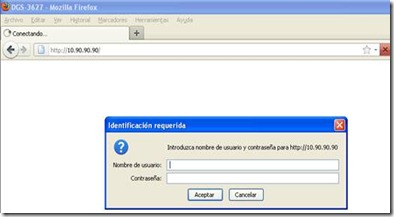
Loading a saved configuration file to a new D-Link DGS-3627 switch
Connect with a browser to the default switch IP (10.90.90.90), the default user and password is blank, so press the OK button:

Tuesday, October 18, 2011
Performing a rescan of the storage on vSphere
Here you can find a VMware's Knowledge Base article that explains how to perform a rescan of the storage on vSphere.
Thursday, October 6, 2011
Reordering vmnics on vSphere 4.x
Today I've had an issue with a vSphere installation (esx 4.0 update 2). I've installed the esx server using a kikstart config file (ks.cfg) as usual, I've only one nic (integrated in the MoBo) so the service console (vswif0) was linked to my first nic (vmnic0) as usual.
Configuring networking from the ESX service console
Here you can find this VMware Knowledge Base that explains how to configure networking from the ESX service console command line.
Details
This article provides steps to configure networking for an ESX host when you only have access to the service console.
Solution
Wednesday, September 28, 2011
Linux rescan SCSI bus
If you add a new disk to a Linux VM system and you don't want to reboot it, you must rescan the SCSI bus to detect it.
Here you can find a bash script that will do this task for you:
http://www.garloff.de/kurt/linux/
Thanks to garloff.

Wednesday, September 21, 2011
Console access on esxi (3.x, 4.x)
This text is from www.yellow-bricks.com
By default this isn’t possible. But there’s a way to get this working, just do the following:
Here is a video that explains ssh access in esxi 3.x:
http://www.vm-aware.com/2008/07/enable-ssh-for-esxi/
Here is a video that explains how to modify the kernel in esxi v4.x to enable ssh access:
http://www.youtube.com/watch?v=FxB0IIpwZu
By default this isn’t possible. But there’s a way to get this working, just do the following:
- Go to the ESXi console and press alt+F1
- Type: unsupported
- Enter the root password(No prompt, typing is blindly)
- At the prompt type “vi /etc/inetd.conf”
- Look for the line that starts with “#ssh” (you can search with pressing “/”)
- Remove the “#” (press the “x” if the cursor is on the character)
- Save “/etc/inetd.conf” by typing “:wq!”
- Restart the management service “/sbin/services.sh restart”
Here is a video that explains ssh access in esxi 3.x:
http://www.vm-aware.com/2008/07/enable-ssh-for-esxi/
Here is a video that explains how to modify the kernel in esxi v4.x to enable ssh access:
http://www.youtube.com/watch?v=FxB0IIpwZu
Thursday, September 8, 2011
Connecting iSCSI from VMware esx
Here is a good article that explains how to use iSCSI on a VMware esx 3.5:
There is also a similar document for vSphere (esx 4):
Wednesday, September 7, 2011
ESX host displays the message "Configuration changes were not saved successfully during previous shutdown"
From VMware Knowledge Base:
Details
-
When you log into the ESX 3.x host service console, you see the message:
Configuration changes were not saved successfully during previous shutdown.
Note: This message is stored in /etc/motd and is generated by the /etc/init.d/vmware script when esxcfg-boot -r returns an error when executed during a shutdown of the ESX host.
-
The log file /var/log/messages may show the following error messages:
ERROR: Execution of '/sbin/vmware-mkinitrd -r -f -v /tmp/vmware.1.tmp '2.4.21-37.0.2.ELvmnix'' failed. See log messages above.
ERROR: Could not write out new initrds.
- initrd-2.4.21-37.0.2.ELvmnix.img in the /boot directory has a size of zero
Solution
You need to recreate the initrd image file.
T o recreate the initrd image file:
- Start the system and select ESX troubleshooting mode.
-
Log in as a user with administrative privileges.
-
Run the commands:
esxcfg-boot -b
esxcfg-boot -p
esxcfg-boot -r
The message does not appear on the next ESX host reboot.
Mounting a Windows share from VMware esx 4
Mounting a windows share from VMware esx 4 can be useful for install updates.
First of all you must enable netbios ports on esx firewall, for this task you can run the following commands on your esx server
First of all you must enable netbios ports on esx firewall, for this task you can run the following commands on your esx server
How to install/enable .Net 3.5 SP1 on Windows Server 2008 R2 for SQL Server 2008 and SQL Server 2008 R2
Here you can find a good article that explains how to enable .Net 3.5 on W2008:
http://blogs.msdn.com/b/sqlblog/archive/2010/01/08/how-to-install-net-framework-3-5-sp1-on-windows-server-2008-r2-environments.aspx
The .NET Framework 3.5 SP1 (also referred to as .NET Framework 3.5.1) is a prerequisite for SQL Server 2008. SQL Server 2008 Setup for standalone instance will install the .NET Framework 3.5 SP1 if it is not already installed. In Windows Server 2008 R2, the .NET Framework is a feature and installing it is different when compared to older versions of Windows Operating System. In previous versions, one could either download the .NET Framework 3.5.1 install binaries from Microsoft download site or use the install binaries from the redist folder of the SQL Server 2008 installation media. Starting with Windows Server 2008 R2, the method of installing .NET Framework 3.5.1 has changed. This document explains how to verify that .NET Framework 3.5.1 is installed and if it is not installed how you can add it.
Method 1: Using Server Manager Interface
http://blogs.msdn.com/b/sqlblog/archive/2010/01/08/how-to-install-net-framework-3-5-sp1-on-windows-server-2008-r2-environments.aspx
The .NET Framework 3.5 SP1 (also referred to as .NET Framework 3.5.1) is a prerequisite for SQL Server 2008. SQL Server 2008 Setup for standalone instance will install the .NET Framework 3.5 SP1 if it is not already installed. In Windows Server 2008 R2, the .NET Framework is a feature and installing it is different when compared to older versions of Windows Operating System. In previous versions, one could either download the .NET Framework 3.5.1 install binaries from Microsoft download site or use the install binaries from the redist folder of the SQL Server 2008 installation media. Starting with Windows Server 2008 R2, the method of installing .NET Framework 3.5.1 has changed. This document explains how to verify that .NET Framework 3.5.1 is installed and if it is not installed how you can add it.
How to verify if .NET Framework 3.5 SP1 is installed:
Here are the steps to verify that .NET Framework 3.5.1 is installed on Windows Server 2008 R2.- Click the Start button in the lower left hand corner of the display.
- Highlight Administrative Tools and select Server Manager.
- In the Server Manager interface, click Features to display all the installed Features in the right hand pane. Verify that .NET Framework 3.5.1 is listed.
Method 1: Using Server Manager Interface
- In the Server Manager interface, select Add Features to displays a list of possible features.
- In the Select Features interface, expand .NET Framework 3.5.1 Features.
- Once you expand .NET Framework 3.5.1 Features, you will see two check boxes. One for .NET Framework 3.5.1 and other for WCF Activation. Check the box next to .NET Framework 3.5.1 and click Next.
- Note: If you do not expand .NET Framework 3.5.1 Features and check it, you will get a pop-up titled Add Features Wizard as shown below.
- Click Cancel and expand .NET Framework 3.5.1 Features and then check .NET Framework 3.5.1 check box below it.
- You cannot install .NET Framework 3.5.1 Features unless the required role services and features are also installed.
- In the Confirm Installation Selections interface, review the selections and then click Install.
- Allow the installation process to complete and then click Close.

- Click the Start button in the lower left hand corner of the display.
- Highlight All Programs and select Accessories
- Expand Windows PowerShell and right click Windows PowerShell and select Run as administrator. Click Yes on the User Account Control box.
- At the PowerShell command prompt, type the following commands, and then press ENTER after each command:
- Import-Module ServerManager
- Add-WindowsFeature as-net-framework
Note: A screenshot is shown below:

Subscribe to:
Posts (Atom)